Setting up time off: PTO, leave and holidays
Let employees request PTO and leave ahead of time in WiseCost: enable an account, set its Time off type to Leave or Holiday, and choose who can use it.
To let your team log PTO and other leave ahead of time in WiseCost, go to Company Setup → Company settings → Time Tracking, open the Internal / Indirect Time card, enable the account your company books PTO to and set its Time off type to Leave. Choose who can use it under Associated employees. Employees then pick a range of days and WiseCost creates the hours for every working day.
Who can do this: an Administrator.
How time off works in WiseCost
Time off is built on indirect accounts, the same ones you use for internal and indirect time. An account becomes a time off account when you give it a Time off type:
- Leave is any time off of the employee's own: PTO, vacation, sick, parental. Which one it is depends on the alias you give the account, such as "PTO" or "Sick".
- Holiday is a company holiday. A company can have only one Holiday account.
- Not time off is an ordinary indirect account, such as overhead or G&A.
WiseCost does not track balances or accruals. It records the time off that was requested and approved, not how many days each person has left.
Set up a time off account
- Go to Company Setup → Company settings → Time Tracking.
- In the Internal / Indirect Time card, open Accounts for time entry and select the account. The list offers every active expense account. The ones that read as time off, or that have an indirect labor role, appear first under Recommended.
- In the table below, type an alias in Alias shown to employees, such as "PTO". That is the name employees see.
- Open Time off type and choose Leave. For your company holiday account, choose Holiday.
- Under Associated employees, keep All employees or pick the people who can charge it.
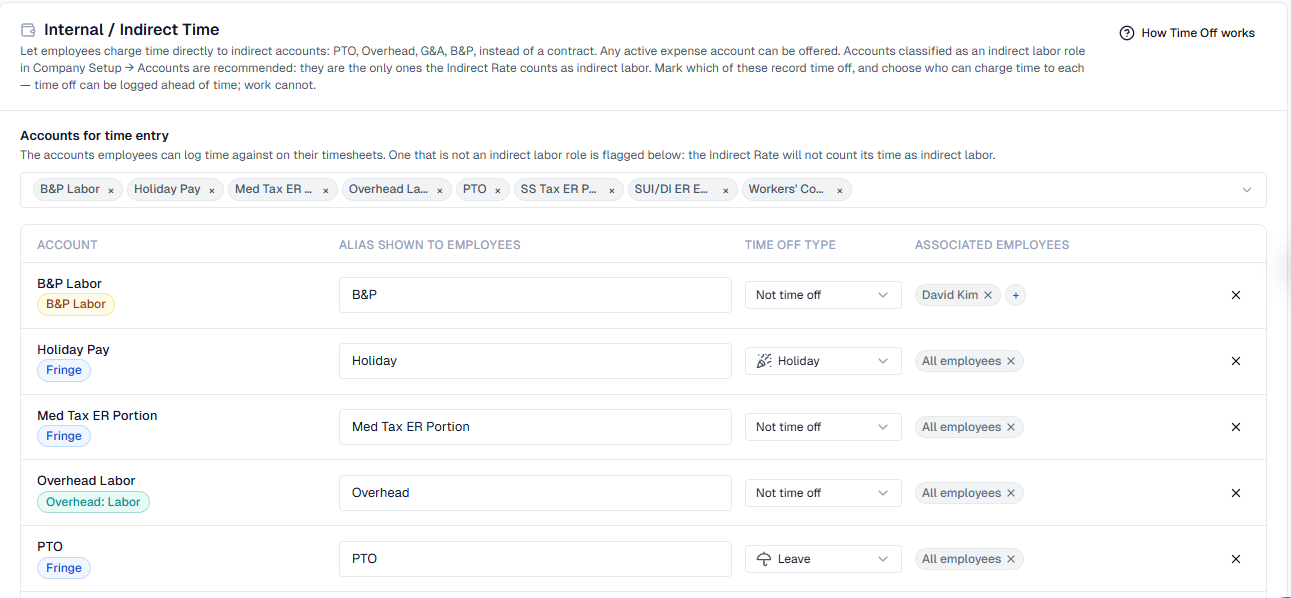
Each change saves as you make it, and WiseCost confirms it, for example "PTO" now records leave. Repeat for each kind of time off you want, for example one account for PTO and one for sick leave.
Choose who can use an account
By default every employee can charge an enabled account. Associated employees narrows that. You pick the people yourself, so it does not depend on how the person is set up in QuickBooks Online. It works for every indirect account, not only time off ones. Employees who are not on the list do not see the account when they log time.
Employees on Distributed tracking are not affected: there the admin chooses the account.
Time off can be logged ahead of time
Planned leave can be recorded before it happens, even when Future-dated time activities is off in the Compliance settings. Work cannot. The exception applies only to accounts with a Time off type. Classes, Projects and ordinary indirect accounts behave as before, so your compliance preset does not need to change.
Employees can request up to 12 months ahead.
Good to know
- An account without an indirect labor role can be enabled. WiseCost flags it with a note under the row. Time charged to it posts to QuickBooks Online like any other, but the Indirect Rate report counts only the four indirect labor roles. Classify the account in Company Setup → Accounts if it should count. See Assigning account roles.
- You cannot change or clear the Time off type while the account holds entries dated in the future. Cancel those requests first.
- Add the company holidays too. See Company holidays.
What happens next
Employees with a Leave account see it under Time off in the account picker of the Time Tracker, and a My Time Off tab. Approvers see the requests under Time Off Requests. See Requesting time off and Approving time off requests.
Common questions
The account my company uses for PTO is not in the list. Why?
Only active expense accounts are offered. If the account is inactive in QuickBooks Online, or is not an expense account, reactivate or change it there and click Re-Sync.
Can I have several kinds of leave?
Yes. Enable one account per kind, set each to Leave and give each its own alias.
Does an employee see an account they are not associated with?
No. The Time Tracker lists only the accounts the employee can charge.