Requiring employees to log their expected hours
Require employees to log 100% of their expected hours in WiseCost: set hours per week per employee and turn on Require expected hours to submit.
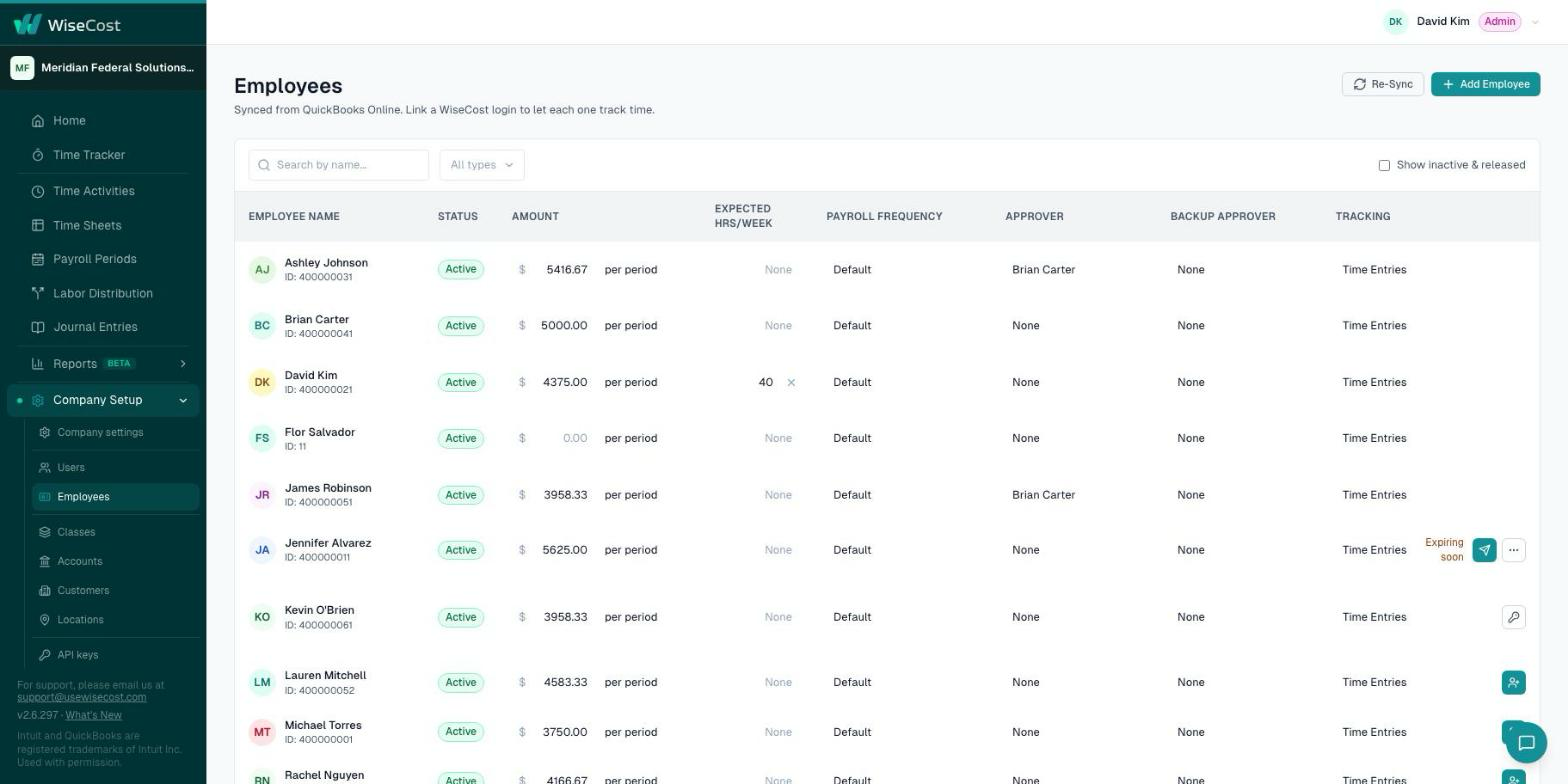
To require employees to log 100% of their expected hours in WiseCost, turn on Require expected hours to submit in Company Setup → Company settings → Compliance, and enter each person's expected hours per week in Company Setup → Employees. An employee with expected hours cannot submit a timesheet until the period's total reaches them. Hours above the expectation are always allowed and are flagged for the approver.
Who can do this: an Administrator.
What expected hours are
Expected hours are an optional weekly figure per employee, for example 40. They exist so a timesheet reflects the total of a person's activity, not only the hours charged to contracts or awards. That is what DCAA calls total time accounting, and what time and effort reporting under 2 CFR 200.430 asks of records that support salaries charged to federal awards.
Set it up
- Go to Company Setup → Employees.
- In the Expected hrs/week column, enter the weekly hours of each employee it applies to. Leave it empty for anyone it does not apply to.
- Go to Company Setup → Company settings → Compliance.
- In the Time entry card, turn on Require expected hours to submit.
What the employee sees
The header of their timesheet shows "X of Y hours" for the period. Until X reaches Y, they cannot send the timesheet for approval. To get there they log the rest of their time, including internal time such as PTO or holiday. See Internal and indirect time.
What the approver sees
Hours over the expectation are never blocked. In the Time Sheets list the timesheet carries a badge, "Over expected: +Xh", so the approver notices. It is informational.
Who it does not apply to
- An employee with no expected hours entered. The requirement does not touch them.
- Everyone, while Require expected hours to submit is off. The figure on the employee is then only a reference.
Compliance presets never change this switch. It is yours to decide.
Undo it
Turn the switch off, or clear the employee's Expected hrs/week. The change is recorded in the Audit Trail with its old and new value.
Common questions
An employee says they cannot submit their timesheet. Why?
Most likely their total is below their expected hours for the period. Send them Why can't I submit my timesheet?.
Can employees log more than their expected hours?
Yes. Hours above the expectation are always allowed. The approver sees an "Over expected" badge.
Do part-time employees need a different number?
Yes. Expected hours are set per employee, so enter each person's own weekly figure.
Further reading from the WiseCost blog
DCAA Timekeeping Requirements: What Auditors Actually Check and How to Pass
DCAA timekeeping is the most audited area for government contractors. Learn the exact requirements, what floor check auditors look for, and how to build a compliant system.
Reviewed by a CPA
How to Prepare Your Team for a DCAA Floor Check
A DCAA floor check tests your employees, not just your books. Here is what auditors ask, what they listen for, and how to prepare your team with a mock floor check.