Requesting time off
Request PTO or leave in WiseCost: pick your time off account, your first and last day and certify. Cancel or shorten the request from My time off.
To take time off in WiseCost, open Time Tracker, choose your time off account (for example "PTO") instead of a contract, pick your first and last day, set the hours per day and click Add. WiseCost creates one entry for every working day in the range, and your approver reviews it if your company requires that. You can plan up to 12 months ahead.
Who can do this: any team member whose company has enabled a time off account for them.
Log time off from the Time Tracker
-
Open Time Tracker.
-
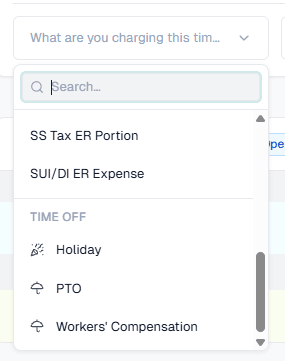
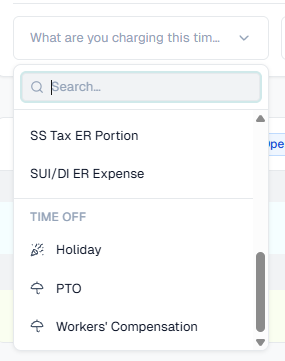
Open the account picker. Your time off accounts are listed under Time off, apart from your contracts. Choose one, such as "PTO". If you do not see any, ask your admin to enable one for you.
-
The row changes. Add a note if you want. It is optional and goes to whoever reviews the request.
-
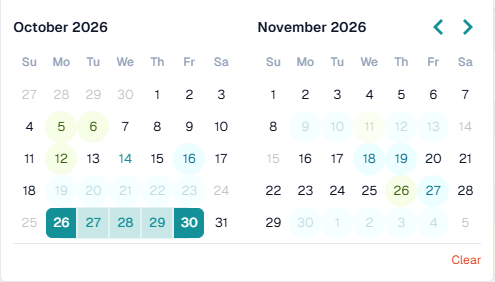
Click the date field and pick your first and last day. Company holidays are shaded, and days you already have off are marked.
-
Type the hours per day. Time off is never timed, so there is no timer on these accounts.
-
Click Add.
WiseCost confirms how many days it added, for example "4 days of PTO added".
For a single day, pick the same day as first and last day. The Holiday account also takes a single day, with its hours.
Request from My Time Off
The My Time Off tab, next to Time Tracker and Timesheet Summary, lists your requests and has its own form.
- Open My Time Off and click Leave.
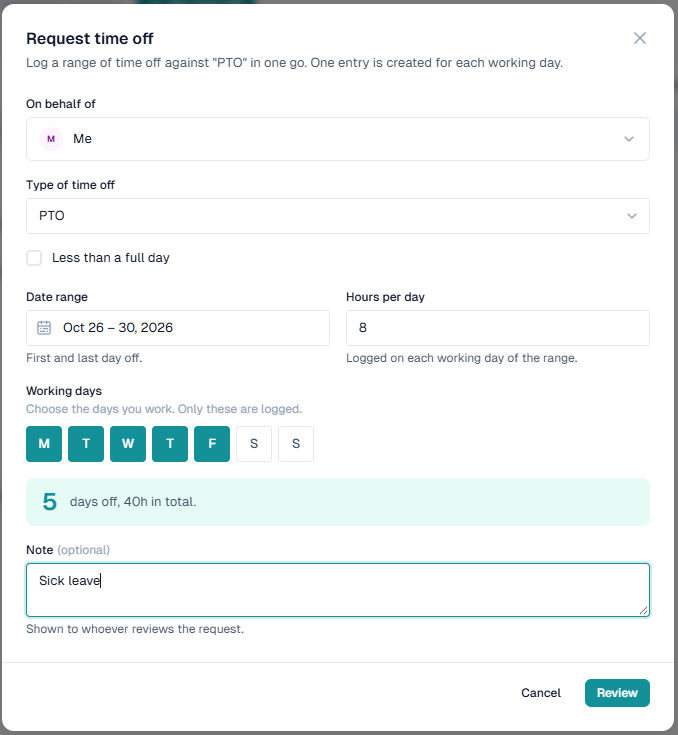
- In Request time off, check On behalf of (it says Me unless you are entering it for someone else) and choose the Type of time off, such as PTO. Then pick the Date range and the Hours per day.
- Check Less than a full day if you will not be off the whole day.
- Under Working days, keep the days you normally work. Only those days are logged, so a weekend is skipped unless you turn it on.
- Add a Note if you want, then click Review.
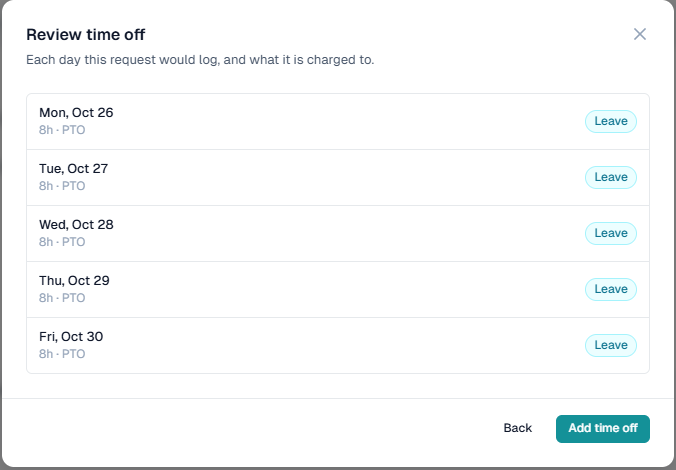
- Review time off lists each day and what it is charged to. Click Add time off to confirm, or Back to change it.
Sending the request certifies that you will be on time off on those days and that the hours it creates are accurate. Your approver sees who certified it and when.
If a day in your range cannot take time off, for example it is already covered by another request, it is on a submitted or approved timesheet, or it would go over 24 hours, WiseCost tells you how many days are the problem and does not create anything until you change the range.
Company holidays in your range
Company holidays are shaded in the date picker. If your range includes one, WiseCost charges that day to the holiday account, and does not repeat it when the timesheet already has it. You are never charged twice for the same day.
See and cancel your requests
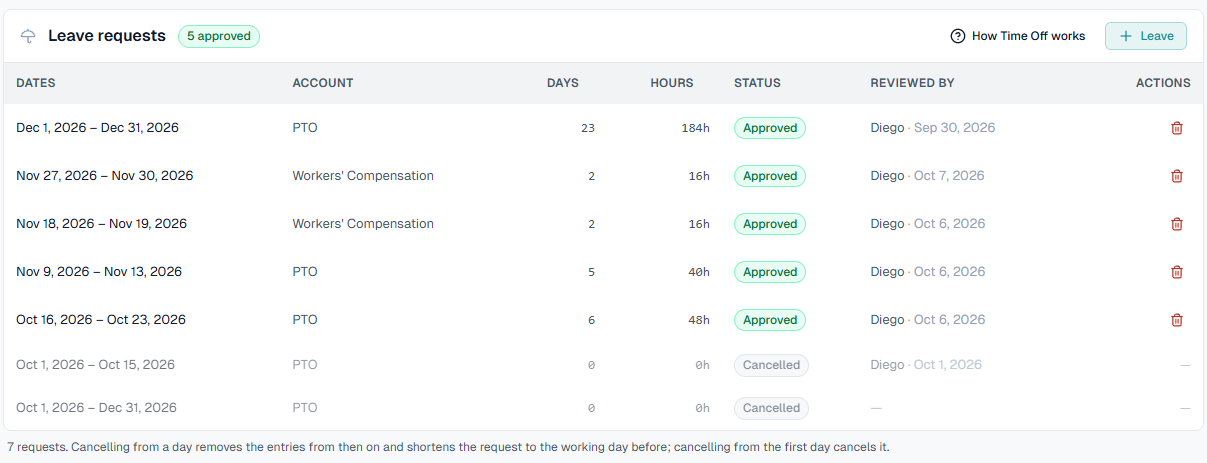
My Time Off lists your requests with their dates, account, days, hours, status and who reviewed them.
To change one, cancel it:
- Click the trash icon on the request.
- Pick Cancel from. To cancel everything, leave the first day. If you come back early, pick your first day back: the request is shortened to the day before and keeps its status.
- Confirm Cancel time off.
The entries from that day on are removed. A submitted timesheet goes back to draft, and one that was already approved is reopened so the entries can come out, which tells your approver.
What happens next
- Your request shows as Pending until your approver approves it. If you can approve your own timesheets, it is approved right away.
- If a whole payroll period is time off, WiseCost submits and approves that timesheet when the request is approved. You have nothing to send.
- If only part of a period is time off, the rest of the period stays open. Log your work and send the timesheet as usual. The time off is already on it.
- The timesheet shows a chip such as "1d leave · approved" or "1d holiday · approved" next to the period.

While a request is Pending or Approved, its entries are locked. You cannot edit or delete them in the Time Tracker or the Timesheet Summary. Cancel or shorten the request instead.
My Custom Holidays
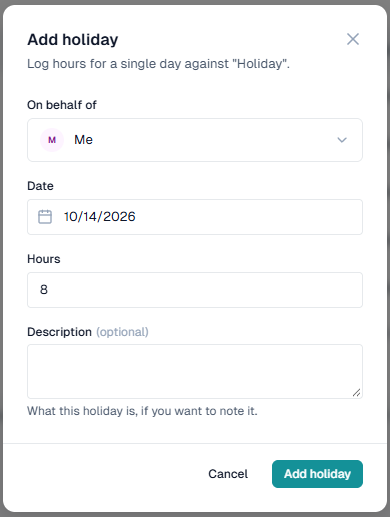
My Time Off also has My Custom Holidays, for a holiday that is not on your company's calendar. Click Holiday. In Add holiday, pick the date and the hours, and add a description if you want. WiseCost logs that single day on the Holiday account. Approvers and admins can also choose On behalf of someone else. Use the trash icon to remove one. The company holidays your timesheet received automatically are not listed there. See them under Company Holidays.
Good to know
- Time off counts toward your expected hours. See Why can't I submit my timesheet?.
- WiseCost does not show balances. It records what you requested, not how many days you have left. Ask your admin about your policy.
- Your approver can enter time off for you when your company allows entering time for someone else. It is recorded with a reason, and whoever entered it cannot approve it.
Common questions
I do not see a time off account. Why?
Your admin has not enabled one, or has not made it available to you. Ask them to check Company Setup → Company settings → Time Tracking.
Why can I pick future dates for PTO but not for work?
Planned time off can be recorded ahead of time. Work cannot, because it has to be recorded when it is done. See I cannot log time on a date.
My request was rejected. What now?
The hours it created are removed. Your approver can leave a reason, and you can make a new request with different dates.