Reviewing and exporting time activities
Use Time Activities in WiseCost to filter every time entry, edit inline, send entries to QuickBooks Online in bulk and export the filtered list to CSV.
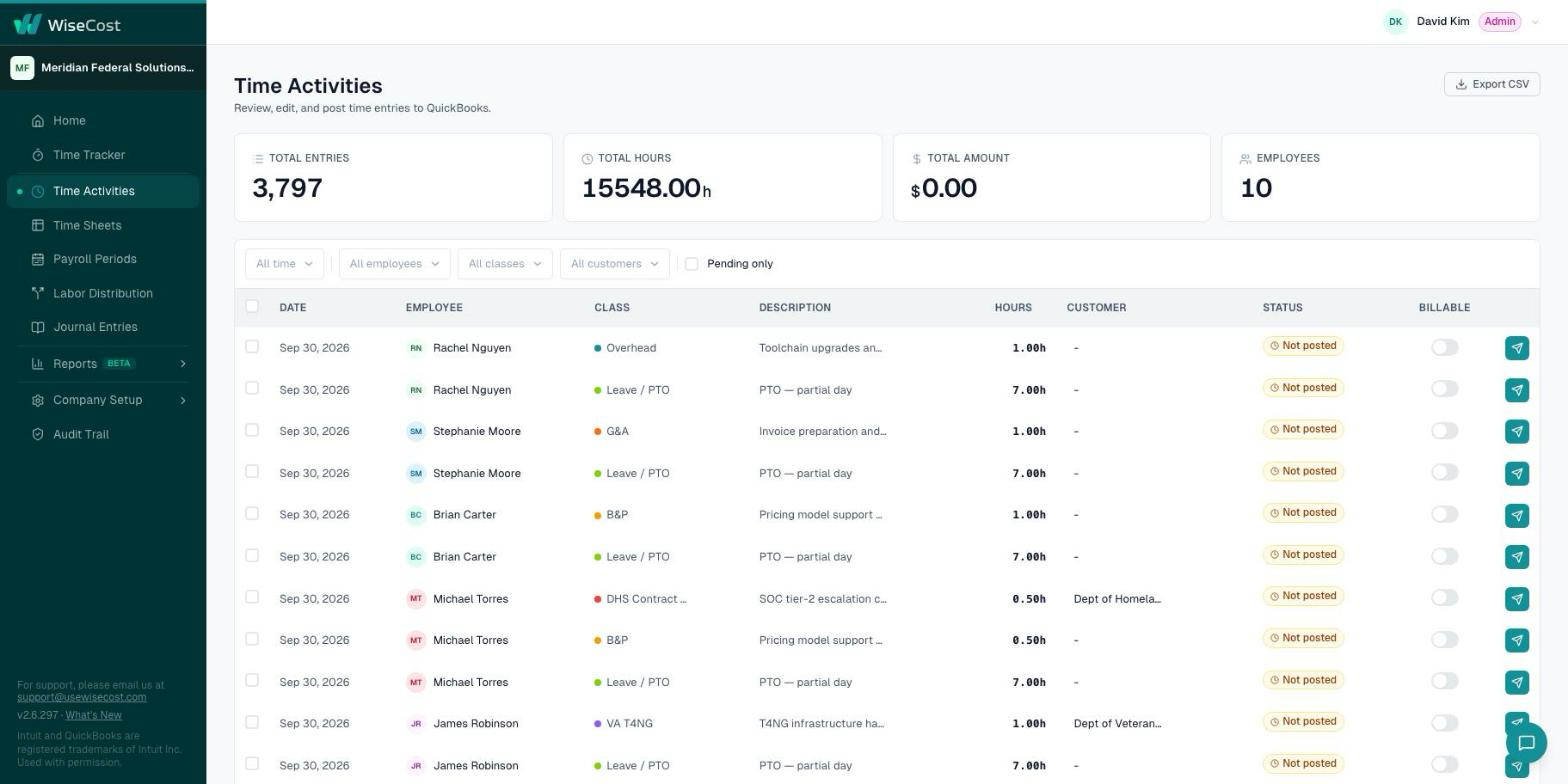
Time Activities is the admin list of every time entry in the company. Open Time Activities in the sidebar to filter entries, edit them inline, send them to QuickBooks Online in bulk and export everything you filtered to CSV.
Who can do this: an Administrator.
A time activity is one block of time on one date, charged to one contract or internal account. A timesheet is all of an employee's time activities in one payroll period.
Find what you need
- Open Time Activities.
- Use the filters at the top to narrow the list. The totals above the table follow your filters.
Edit an entry
Edit a value directly in its row. The change is recorded in the Audit Trail with the old value and the new value. Entries on a Locked timesheet belong to a posted period. To change them, reopen the period first. See Reopening a payroll period or timesheet.
Send time activities to QuickBooks Online
Select the entries and send them in bulk. The posting status column shows which ones have not been posted. A class that exists only in WiseCost cannot be sent. See A class that only exists in WiseCost.
Export to CSV
Click Export CSV. The file contains everything that matches your filters, not only the rows on screen.
For a recurring export to a data warehouse or a BI tool, use the WiseCost API instead.
Common questions
How do I export WiseCost time data?
For a one-time file, filter Time Activities and click Export CSV. For an automated feed, use the read-only API.
Does the CSV include delegated entries?
Yes. Entries keyed on someone's behalf are marked as delegated on the entry, on the timesheet and in exports.