Importing payroll from Gusto, ADP or Paychex
Import your real payroll into WiseCost from a Gusto, ADP or Paychex CSV or XLSX file. Columns are detected, amounts are editable, and gross replaces pay.
To use your real payroll in labor distribution, import it in WiseCost. In Labor Distribution, on the Employee Review step, click Import payroll, upload the CSV or XLSX export from Gusto, ADP or Paychex, confirm the detected columns, review the amounts and import. The imported gross pay replaces each salaried employee's configured pay per period for that period.
Who can do this: an Administrator.
Before you start
- Export the payroll register of the period from your payroll provider, as CSV or XLSX.
- Have the period ready in Labor Distribution. See Running Labor Distribution in WiseCost.
1. Upload the file
- Open Labor Distribution and click Review & Adjust on the period.
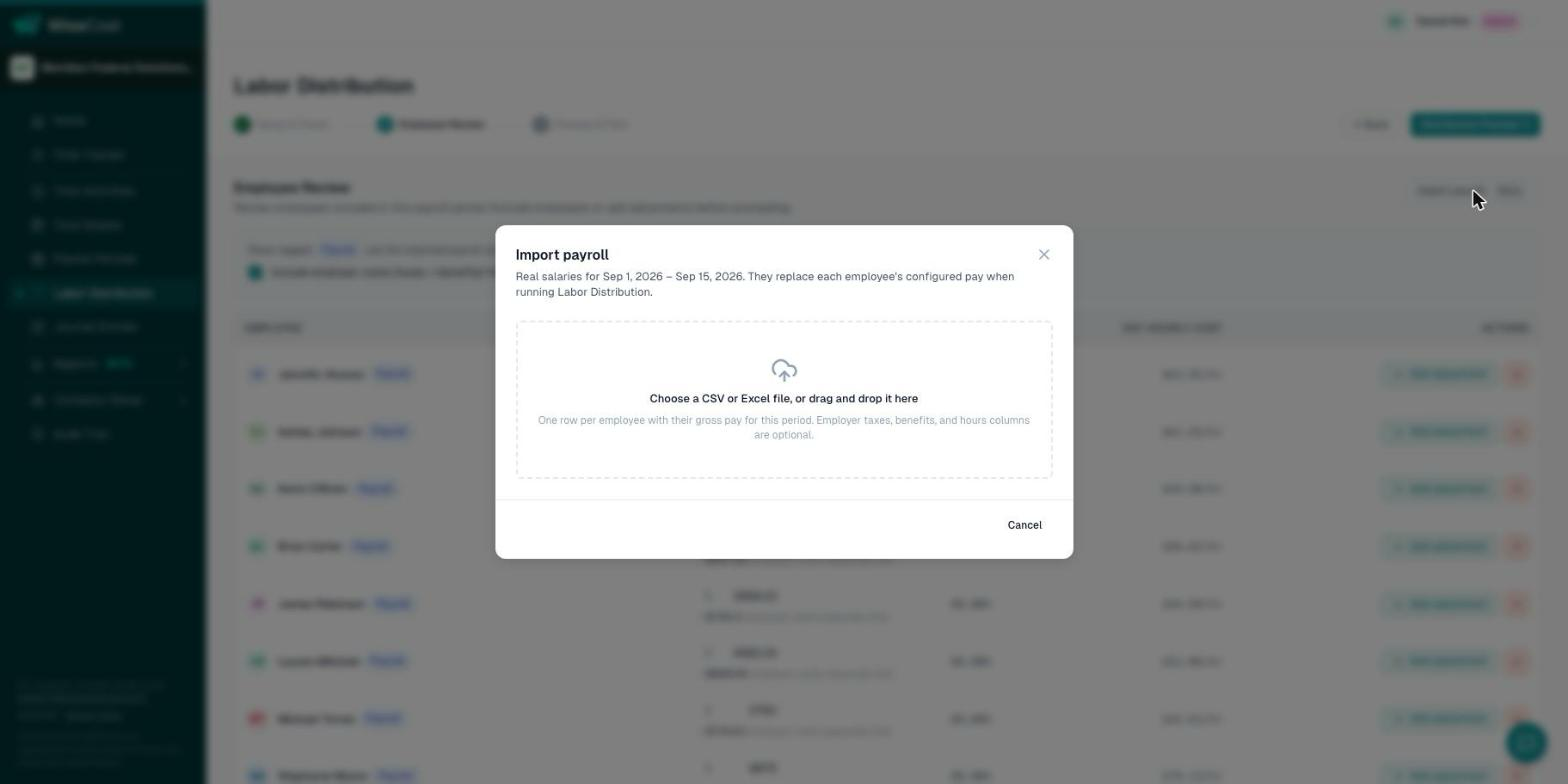
- On the Employee Review step, click Import payroll.
- Upload the CSV or XLSX file.
2. Confirm the columns
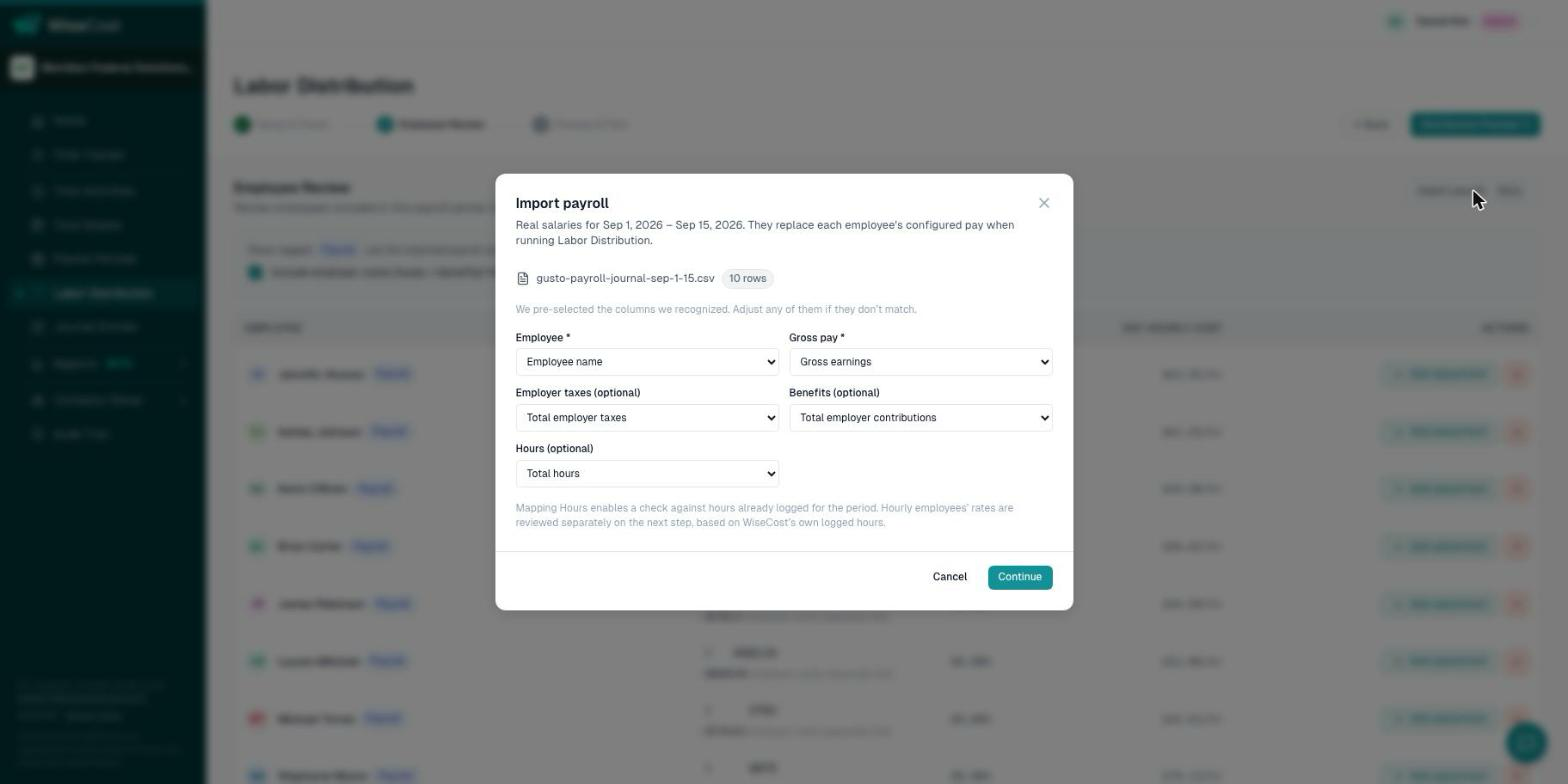
WiseCost detects which columns hold the employee, the gross pay, the employer taxes, the benefits and the hours. Check the mapping and correct any column it got wrong.
3. Review and import
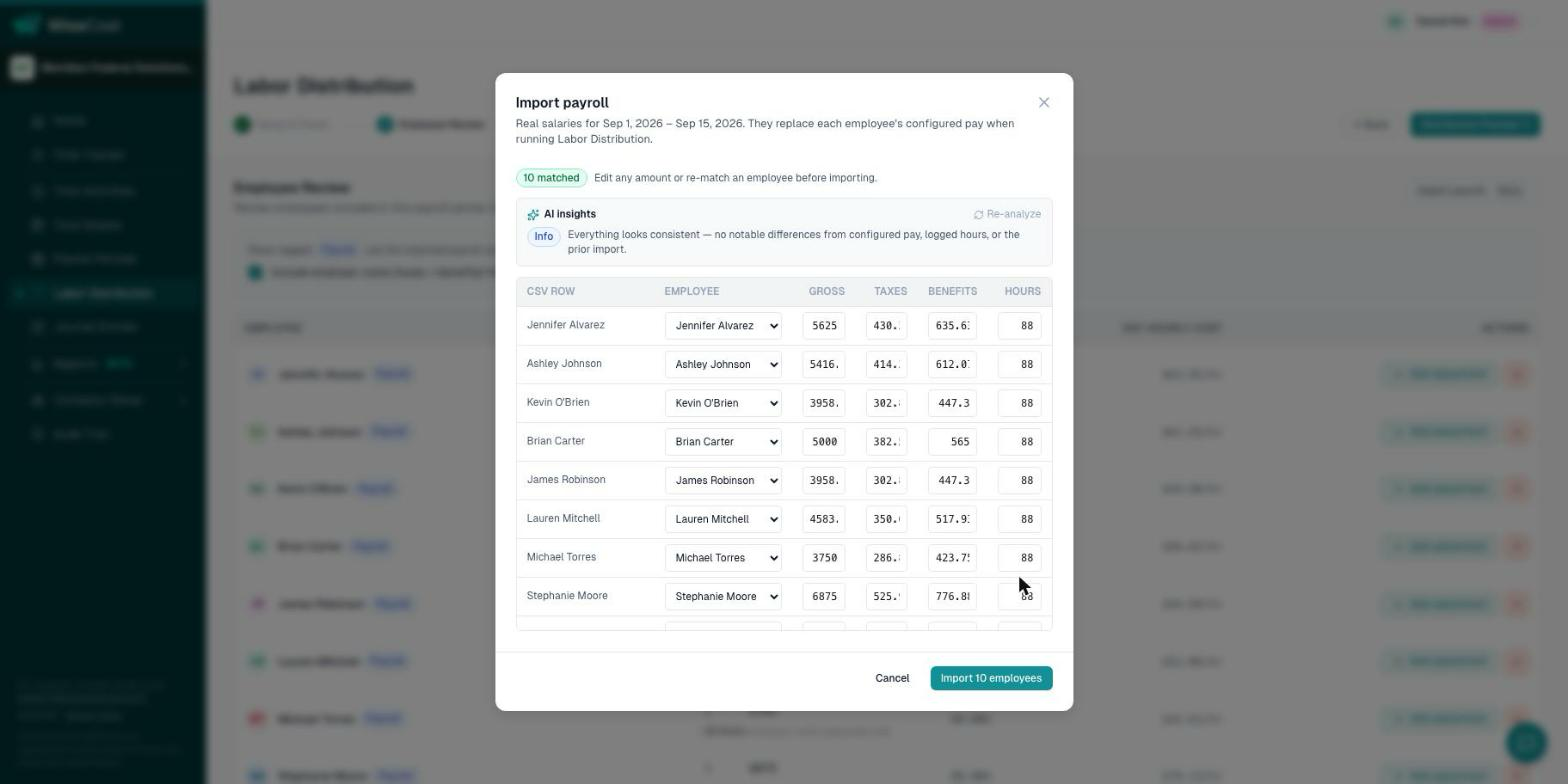
- Check that every row of the file is matched to the right employee. Re-match any that is not.
- Edit any amount that needs it. The preview is editable.
- Read the AI insights. They point out things worth a second look, such as a difference against configured pay, logged hours or the previous import. They are advisory only and never change a number.
- Click the import button.
What happens next
Back on Employee Review, the imported employees carry a Payroll tag. For those rows, WiseCost uses the imported gross for this period instead of the employee's configured pay. Editing their pay on that screen updates the imported record.
The employer taxes and benefits in the file are not mixed into direct labor. You can include them as separate lines. See Employer taxes, benefits and adjustments.
Common questions
How do I import Gusto, ADP or Paychex payroll for labor distribution?
Export the period's payroll as CSV or XLSX, then use Import payroll on the Employee Review step of Labor Distribution. WiseCost detects the columns and lets you review every amount before importing.
Does the import change the pay configured on my employees?
No. The imported gross applies to that payroll period only. The pay per period on the employee stays as it is for other periods.
Does the AI change my numbers?
No. The AI insights are observations for you to review. Only you edit amounts.
My provider is not Gusto, ADP or Paychex. Can I still import?
The import reads CSV and XLSX and lets you correct the column mapping. If your file does not map, write to support@usewisecost.com.