Approving and rejecting timesheets
Approve or reject timesheets in WiseCost from Time Sheets, one by one or in bulk. Admins approve anyone; supervisors approve only their own team.
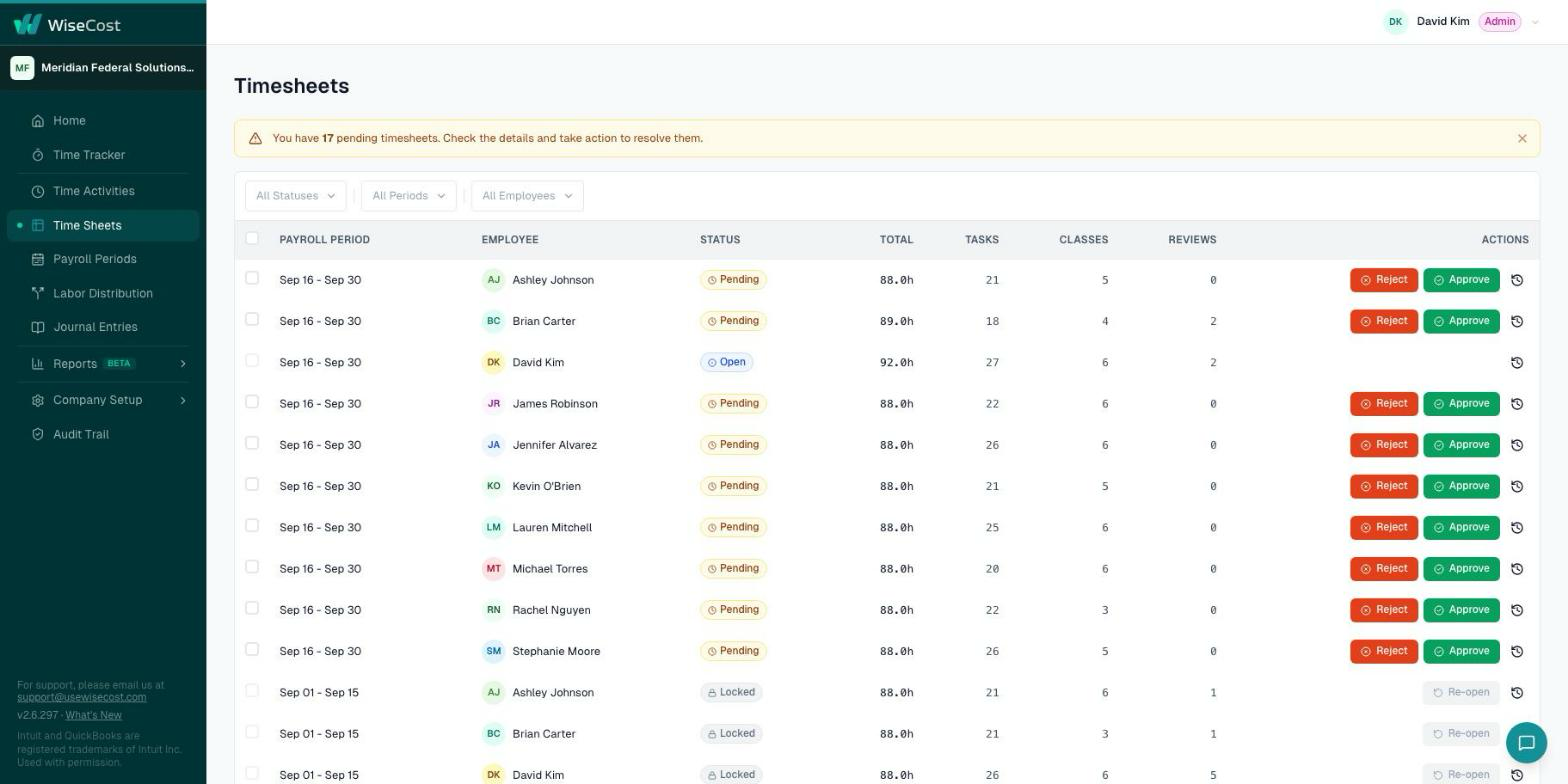
To approve timesheets in WiseCost, open Time Sheets, review each submitted timesheet and click Approve or Reject. Admins can approve any timesheet. Supervisors approve only the timesheets of the employees assigned to them. A rejection needs a comment and sends the timesheet back to the employee; an approval makes it ready for Labor Distribution.
Who can do this: Administrators, and Supervisors for their own team.
The same steps in writing:
1. Open Time Sheets
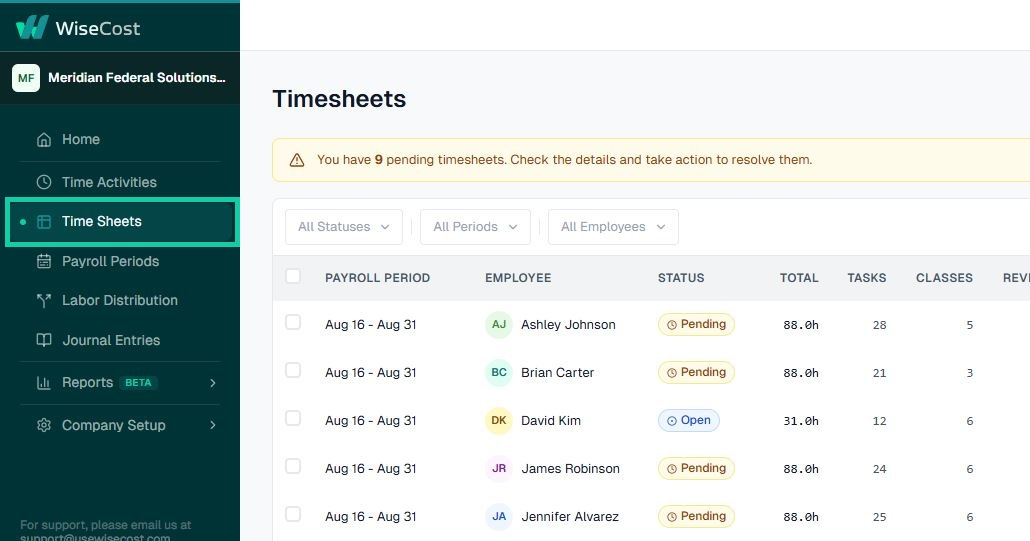
Log in and go to Time Sheets. You'll see every timesheet you can act on, with its status.
2. Filter, or approve in bulk
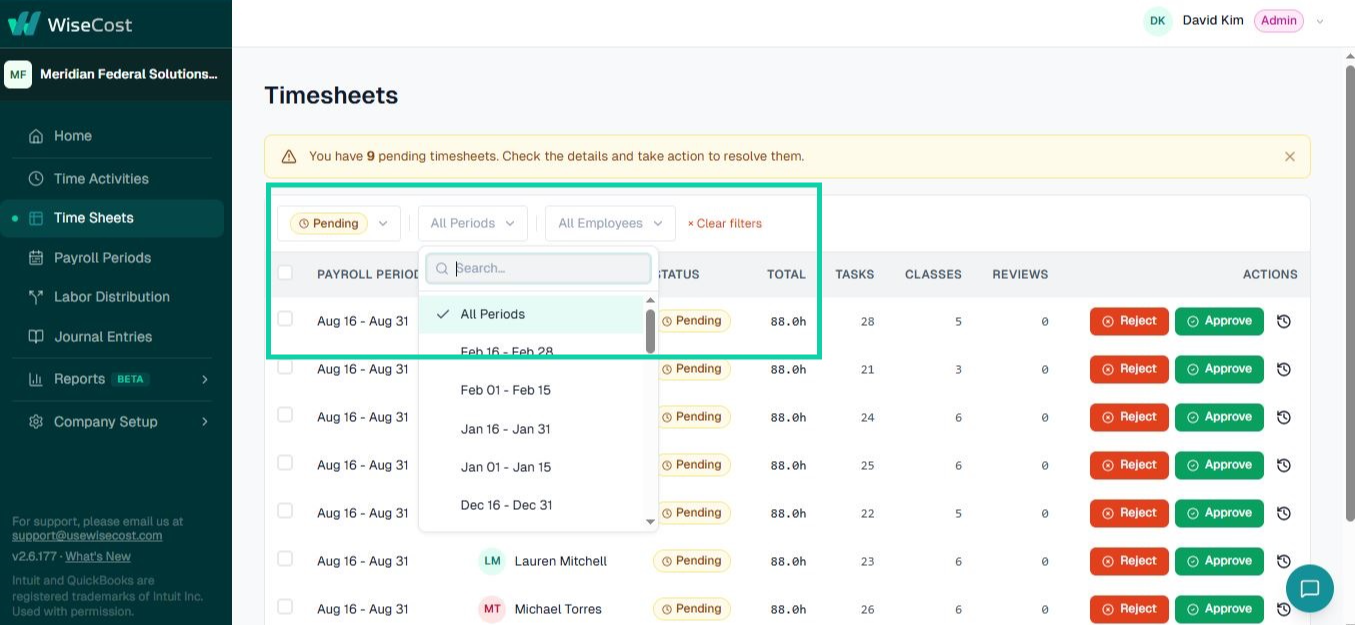
Review timesheets one by one or act on several at once: tick the checkboxes and approve or reject them in bulk. You can filter by status, period, or employee, including the Pending approval filter, which groups every timesheet waiting on you: the ones already submitted (Pending) together with, if your company allows it, the ones still Open. See Approving without employee certification below.
3. Review an individual timesheet
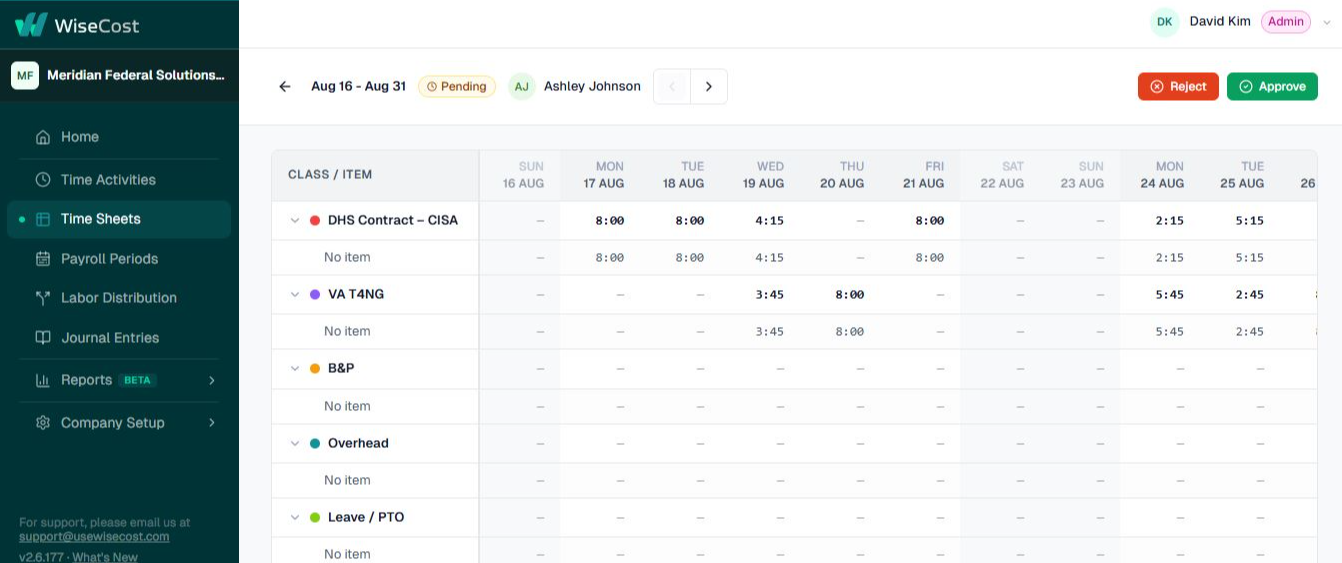
Click a timesheet to open the employee's full period and review their hours day by day, broken down by class and item.
4. Approve or reject
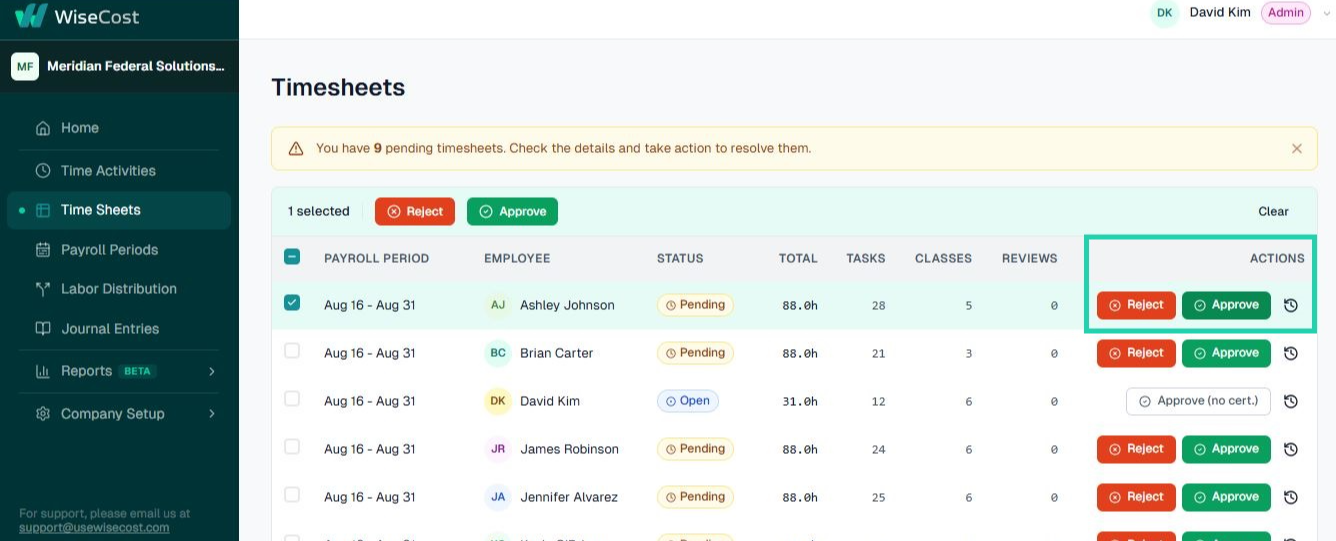
To reject, click Reject and leave a comment explaining what needs to change. The employee is notified, edits their entries, and resubmits. To approve, click Approve, and the timesheet is ready for labor distribution.
Every approval and rejection is recorded in the Audit Trail with who, what, and when. That's part of what makes your timekeeping DCAA-ready.
Timesheet statuses
| Status | Meaning |
|---|---|
| Open | The employee is still logging time. It has not been submitted. |
| Pending | Submitted and in review. The employee cannot edit it, but can withdraw it. |
| Approved | Signed off. Ready for Labor Distribution. |
| Rejected | Sent back with a comment. The employee corrects it and resubmits. |
| Locked | Labor Distribution posted the period. To change it, the payroll period has to be reopened first. |
Badges in the list
Two badges help you decide where to look. Both are informational and neither blocks approval.
- Contains delegated entries: someone entered time on the employee's behalf. See Entering time for a team member.
- Over expected: +Xh: the employee logged more than their expected hours for the period. See Requiring expected hours.
Approving without employee certification
If Require employee certification before approval is off in Company Setup → Company settings → Compliance, you don't have to wait for the employee to submit. A timesheet still in Open status shows Approve without employee certification instead of the regular Approve, so you can sign off directly on hours you already know are correct, for example after entering them yourself for someone in the field.
Both compliance presets (DCAA and Uniform Guidance) turn this setting on, which requires the employee's own submission before you can approve. Turn it off only if your written policy allows an admin to certify hours on an employee's behalf. Either way, the action is recorded in the Audit Trail.
When WiseCost refuses an action
If you cannot approve a timesheet, WiseCost tells you why. The two usual reasons are separation of duties (you entered hours on that timesheet, or it is your own and self-approval is off) and a timesheet that belongs to another team. See I cannot approve a timesheet.
History and reopening
Each timesheet keeps its history of submissions, approvals, rejections and reopenings. Open it from the history icon on the row. Whoever can approve a timesheet can also reopen it with Re-open. See Reopening a payroll period or timesheet.
Common questions
Who can approve a timesheet in WiseCost?
Admins always can. Each employee can also have an approver and a backup approver, who approve only that employee's timesheets. See Approvers and supervisors.
Can I approve a timesheet the employee never submitted?
Not while Require employee certification before approval is on, which both compliance presets set. Submitting the timesheet is the employee's certification of their hours. If that setting is off, you can: an Open timesheet shows Approve without employee certification instead of Approve. See Approving without employee certification above.
Can I fix a timesheet after it was approved?
Yes. Reopen it, the employee corrects and resubmits, and you approve again. If the period was already posted, reopen the payroll period first.
Can I approve my own timesheet?
Only if Allow approving your own timesheet is on in Company Setup → Company settings → Compliance. Both presets turn it off.