Fixing a rejected timesheet
When your timesheet is rejected in WiseCost, read your approver's comment, edit or add the time activities it asks for, and send the timesheet again.
What "Rejected" means
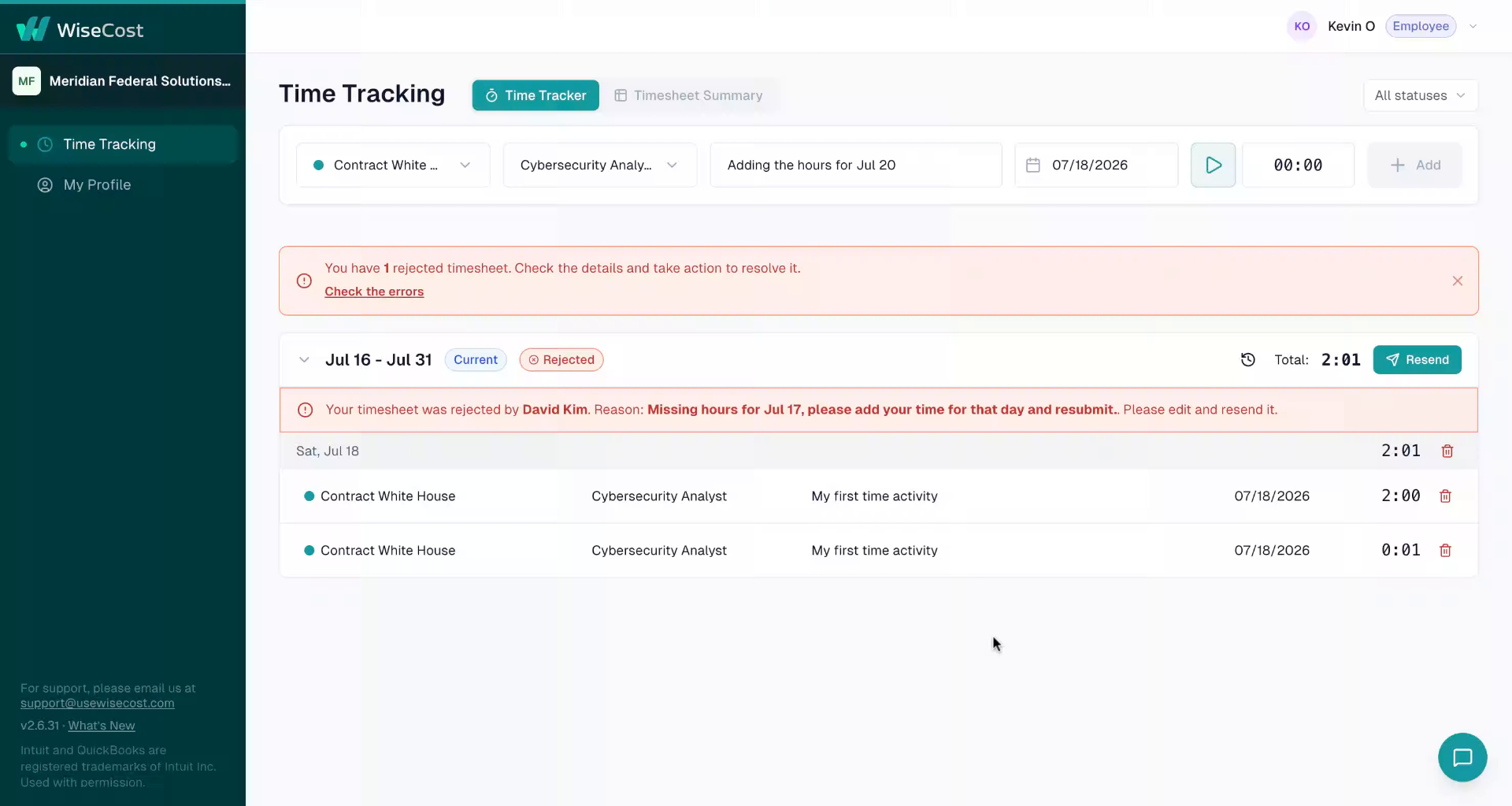
If your supervisor finds something to correct, your timesheet comes back with the status Rejected. That unlocks it: you can edit your existing time activities and add new ones for that period again.
1. Read the rejection reason
Your supervisor's comment appears on the timesheet. For example, missing hours for a specific day. It tells you exactly what to fix.
2. Make the correction
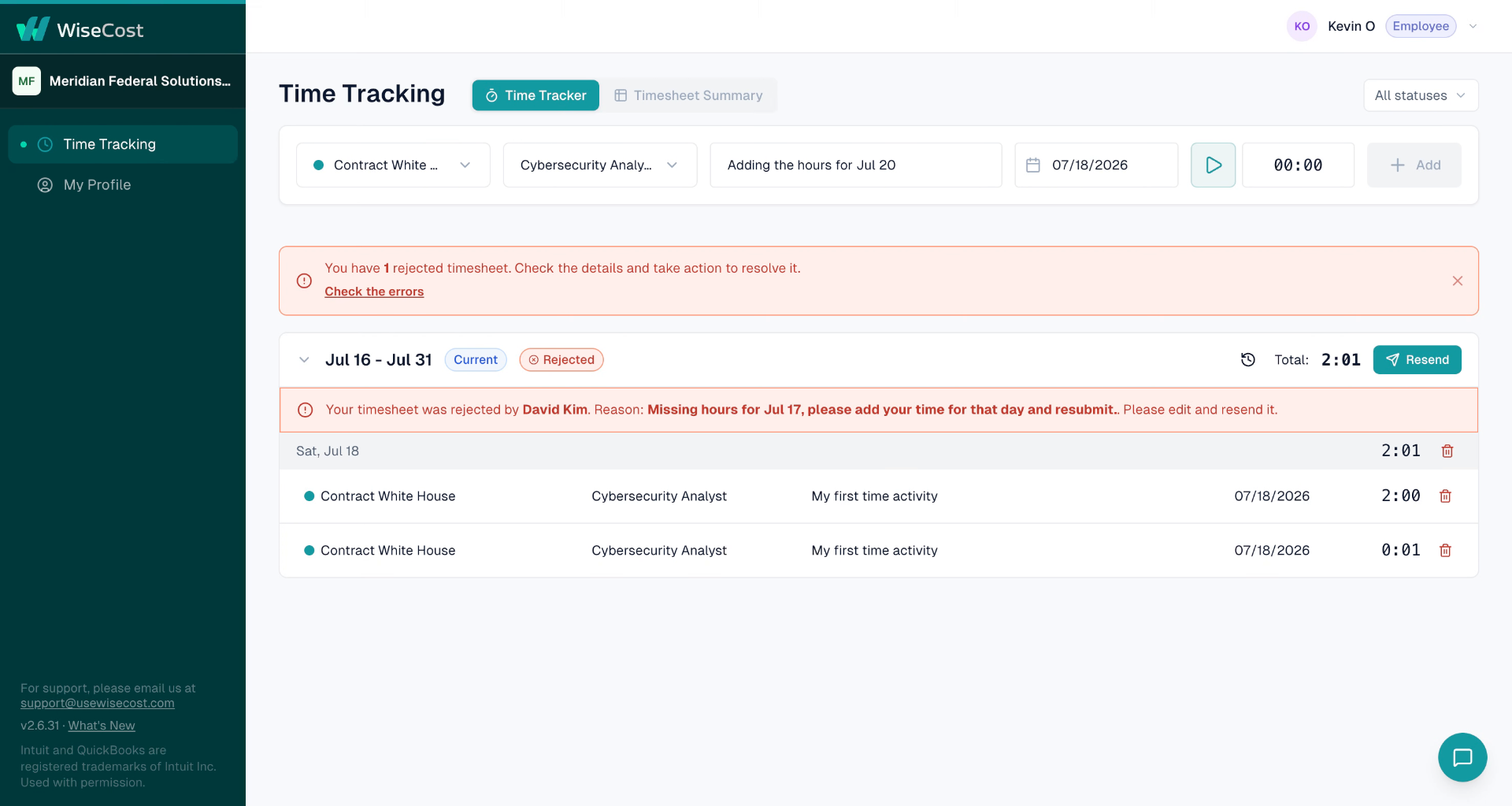
Fix what the comment asks for: edit an existing activity, or add the missing time. In this example, we add a new time activity for the missing date.
3. Resubmit for approval
Send the timesheet again, the same way you did the first time.

Your timesheet is back to Pending, and your supervisor will review it again. Every change you made is recorded, part of what keeps your company's time records audit-ready.
This was the last step of the employee track. Need something else? Browse all topics or reach out to support@usewisecost.com.