Your first login
Sign in to WiseCost for the first time: open the welcome email, use your temporary password, set a new one and land on the Time Tracking screen.
Your company admin has created a WiseCost account for you. WiseCost is the tool your team uses to log work hours. Getting started takes about two minutes.
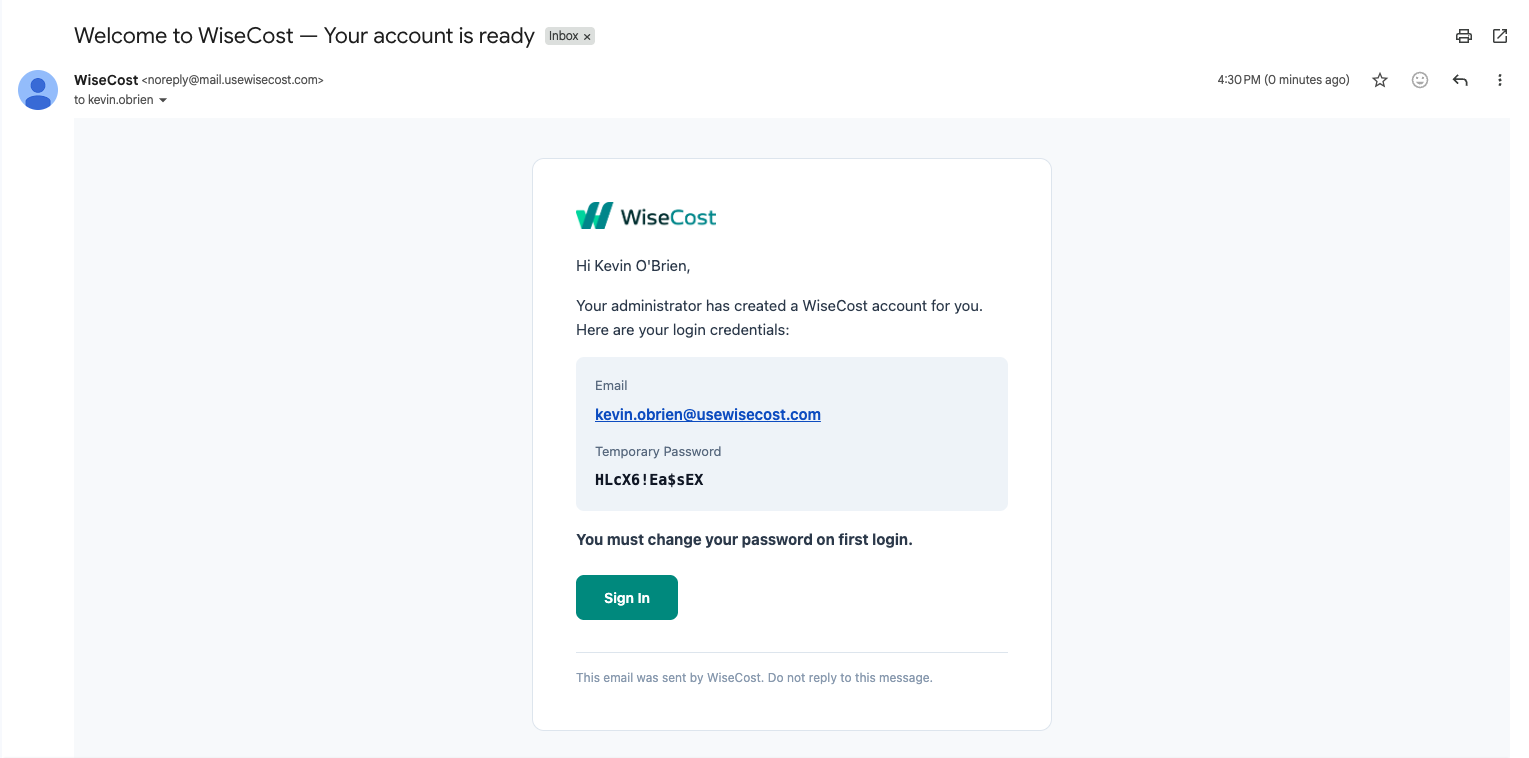
1. Open your welcome email
Look for an email from WiseCost with the subject "Welcome to WiseCost. Your account is ready". It contains your login email and a temporary password. Click Sign In.
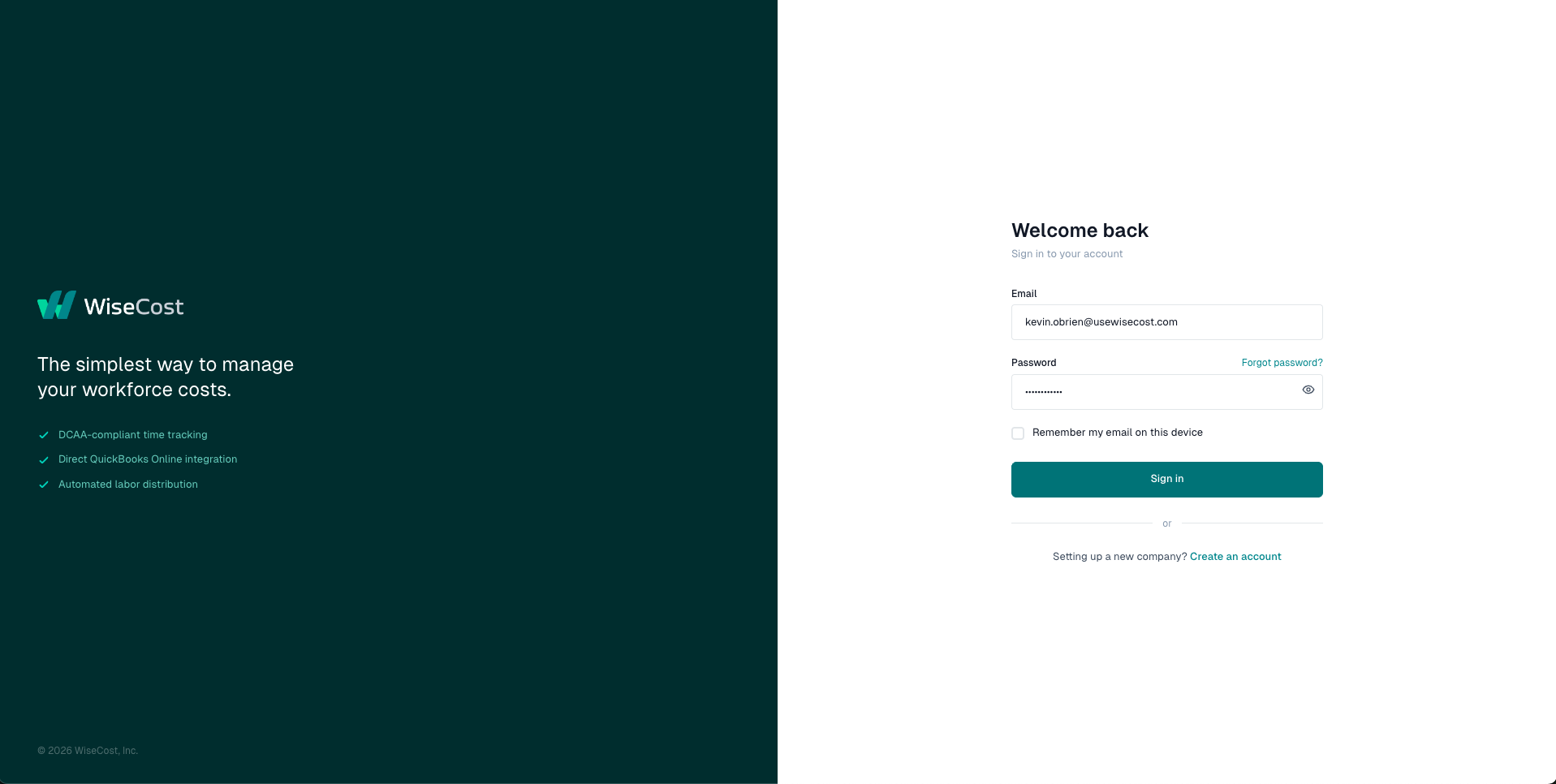
2. Sign in with your temporary password
On the login page, enter your email and the temporary password from the email.
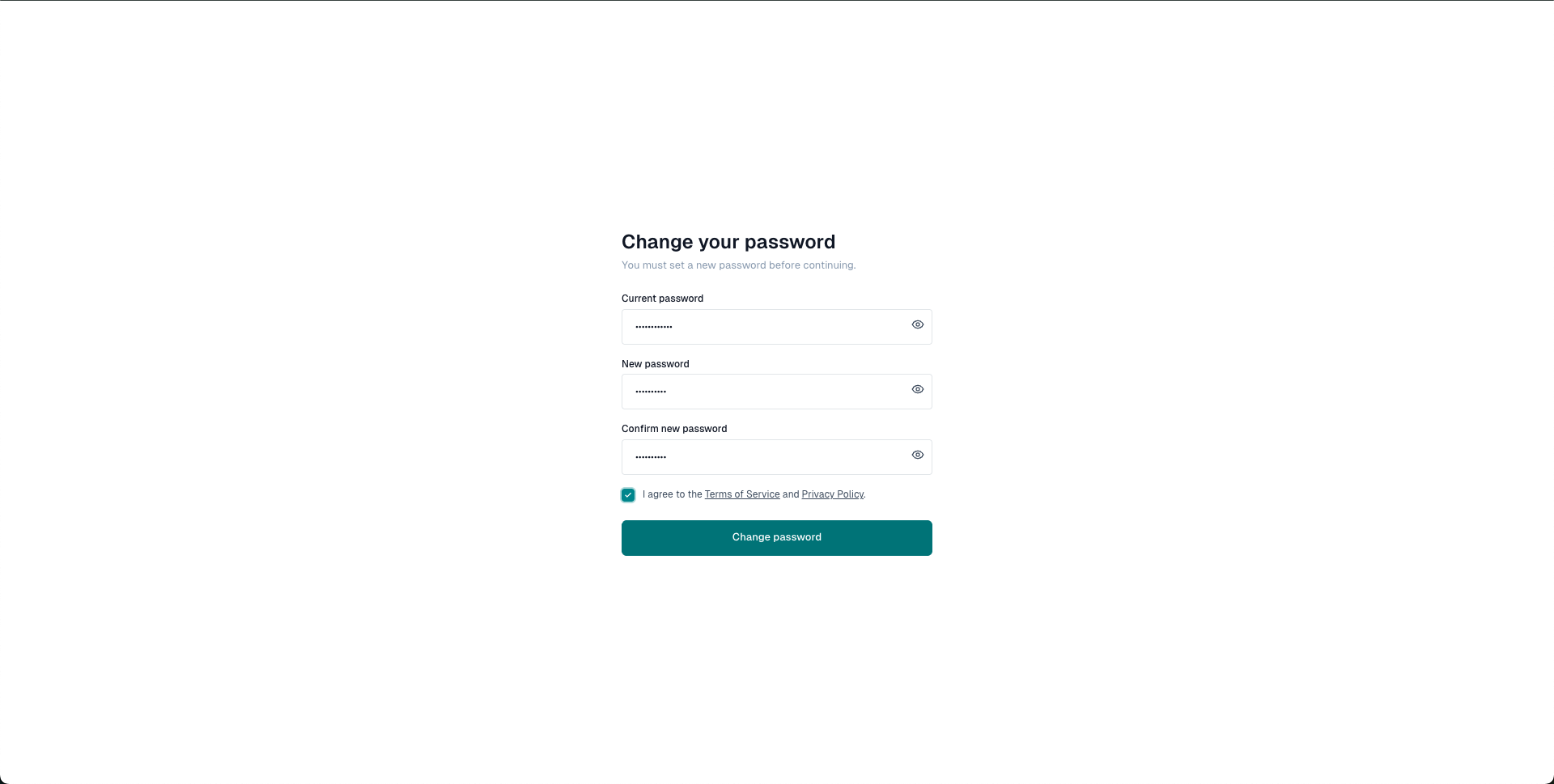
3. Set your new password
WiseCost will ask you to change your password before continuing. Enter the temporary password as your current password, choose a new one, and accept the Terms of Service.
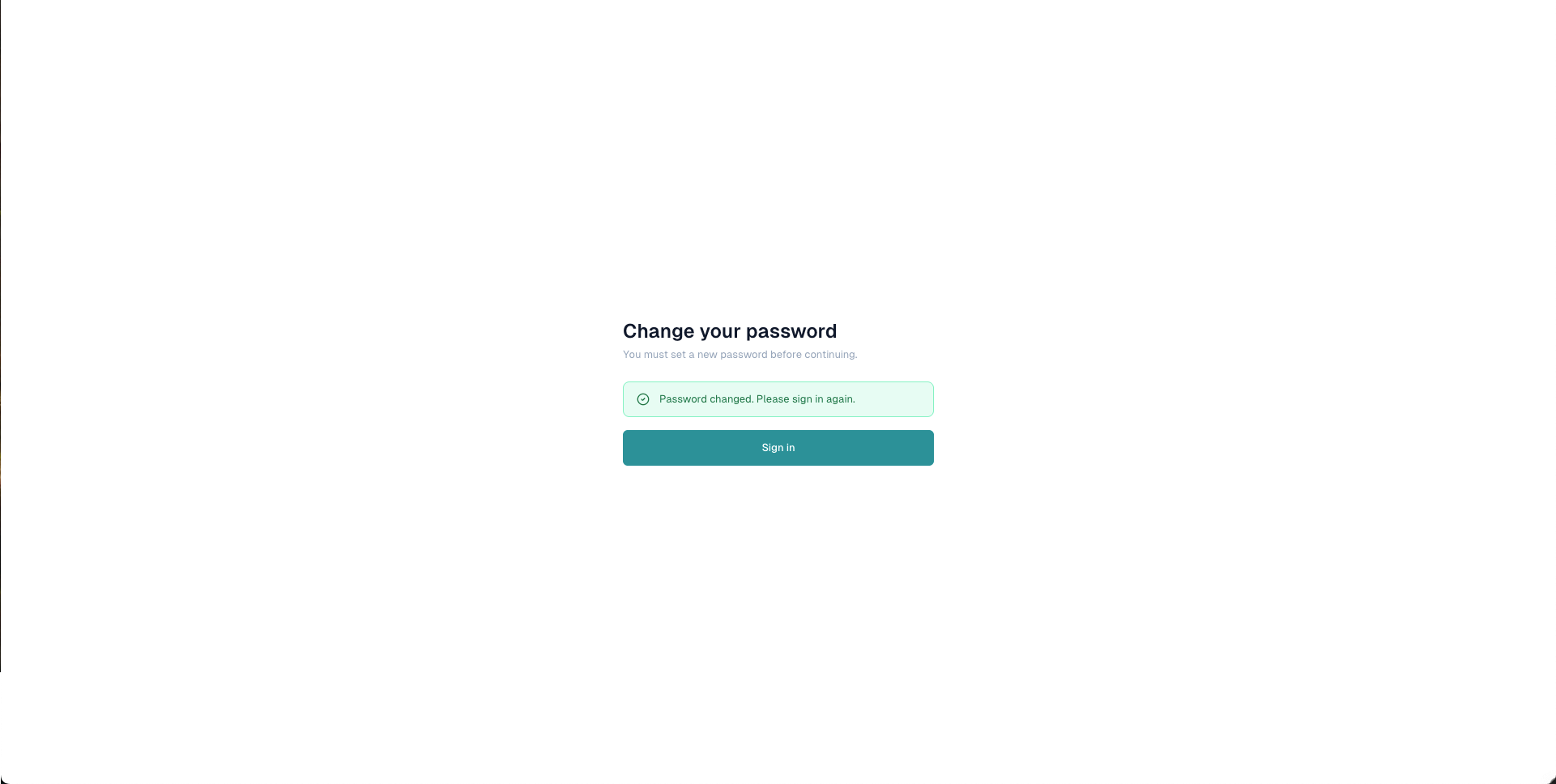
4. Sign in again
Once your password is changed, sign in one more time, now with your new password.
5. You're in
You'll land on the Time Tracking screen. This is where you'll log your hours as time entries and build your timesheet for each pay period.
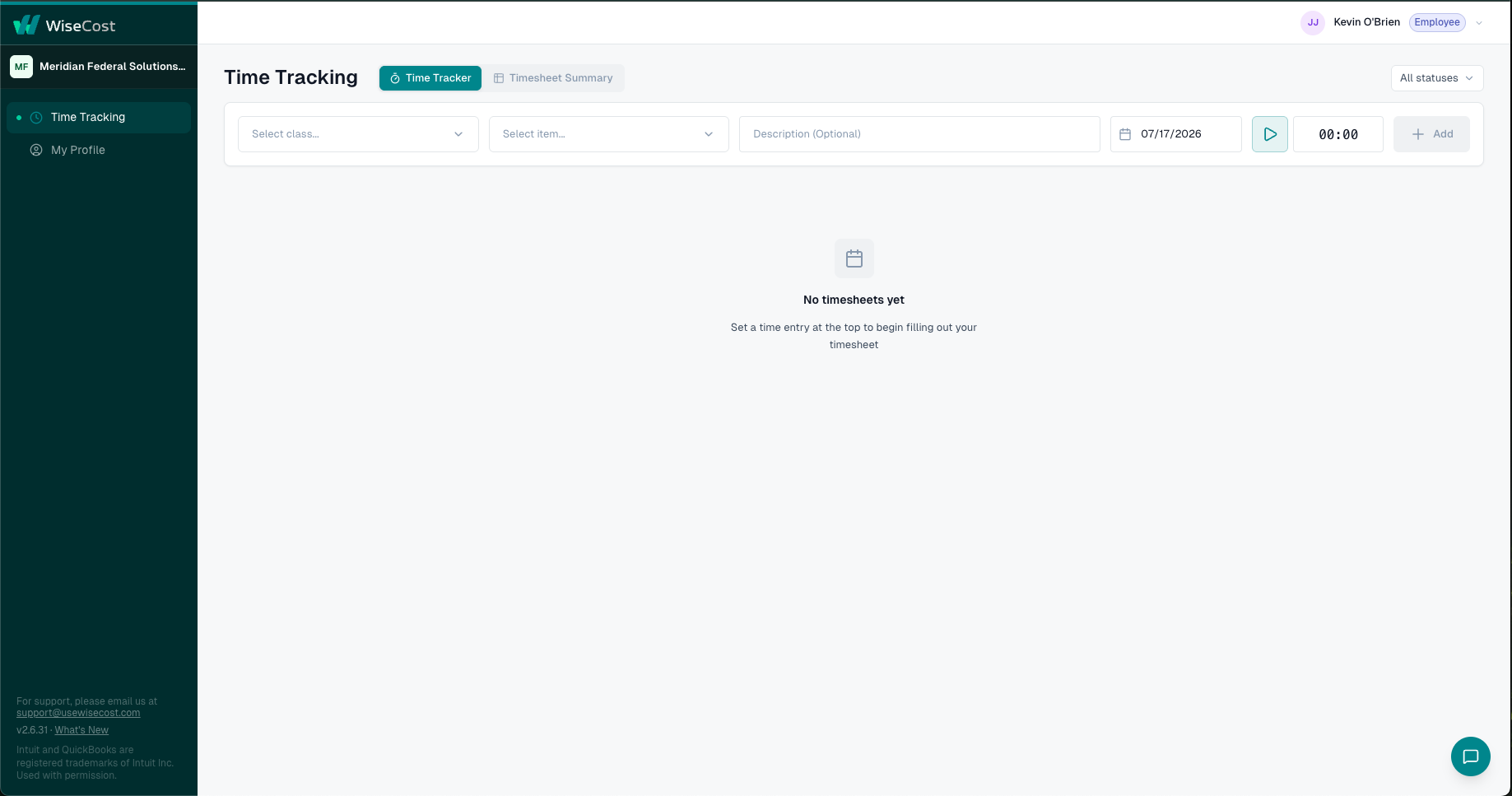
That's it. Next step: Logging your hours and submitting your timesheet.
Didn't get the email? Check your spam folder first. If it's not there, your company's email filter may have stopped it before it reached your inbox: follow Not receiving emails from WiseCost. Your admin can also resend your invitation or send you the link directly, and you can reach us at support@usewisecost.com.