QuickBooks & GovCon· · 9 min read
Moving From QuickBooks Desktop to QuickBooks Online as a Government Contractor
What moves, what does not, and what to set up for DCAA when a government contractor migrates from QuickBooks Desktop to QuickBooks Online: chart of accounts, contracts as Projects or Classes, timesheets, payroll history and the records you need to keep.
Many small government contractors started on QuickBooks Desktop and built their cost accounting around it: jobs for each contract, classes for cost pools, timesheets entered in the company file. Intuit no longer sells QuickBooks Desktop Pro Plus, Premier Plus or Mac Plus to new customers in the US, and more contractors are planning a move to QuickBooks Online. For a contractor, the migration is also the moment the accounting system can lose the structure an auditor expects to find.
This guide is for owners, bookkeepers and CPAs planning that move for a company with government contracts.
The short answer
Intuit's migration tool moves your accounts and balances, customers and jobs, classes, items and transactions. It does not move everything a contractor relies on: paycheck detail, QuickBooks Time (Intuit's time tracking app) data and settings, and memorized reports all need a plan. Before you migrate, decide whether contracts will be Projects or Classes in QuickBooks Online, keep a full archive of the Desktop file, and line up the timekeeping and labor distribution process (spreading payroll to contracts and indirect costs based on hours worked) you will use from day one.
The migration moves your ledger. It does not move your compliance process, so plan the labor side before the cutover date.
Where QuickBooks Desktop stands
According to Intuit's support page (updated October 16, 2026), after September 30, 2024 Intuit stopped selling new subscriptions of QuickBooks Desktop Pro Plus, Premier Plus, Mac Plus and Enhanced Payroll in the US. Existing subscribers can keep renewing, and Intuit continues to provide security updates, product updates and support to them. QuickBooks Desktop Enterprise is not affected and is still sold.
Intuit also retires older Desktop versions. After May 31, 2026, the 2023 versions (including Pro Plus 2023, Premier Plus 2023 and Enterprise 23.0) lost live support, Desktop Payroll, online bank feeds and critical security updates. Intuit says QuickBooks Desktop Plus 2024 and Enterprise 24.0 were its final annual platform releases, and current subscribers now get updates during the year instead of a new version. If you plan to stay on Desktop for now, check Intuit's service discontinuation policy for the version you run.
So there is no deadline that forces current subscribers off Desktop today. The reasons to move are practical ones, such as sharing the books with a bookkeeper or CPA in the cloud, or using add-ons built for QuickBooks Online.
What moves and what does not
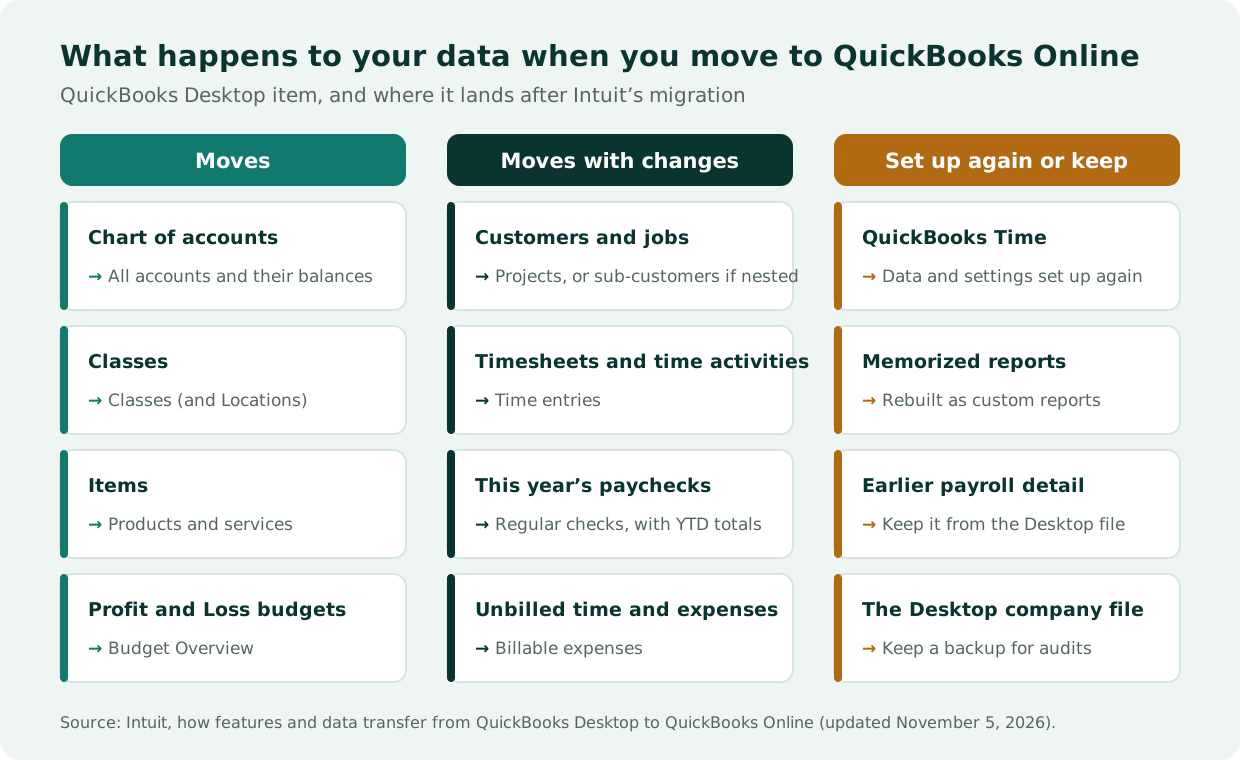
Based on Intuit's guide to moving from Desktop to Online (updated November 5, 2026):
| In QuickBooks Desktop | In QuickBooks Online after the move |
|---|---|
| Chart of accounts | All accounts and their balances move; each account gets the closest detail type |
| Customers and jobs | Jobs with no sub-jobs become Projects; other jobs become sub-customers |
| Classes | Map to Classes (and Locations) |
| Items | Move as products and services |
| Weekly timesheets and single time activities | Become time entries |
| QuickBooks Time | Timesheet data, pay item mappings and settings do not move and must be set up again |
| This year's paychecks | Move as regular checks, not paychecks; paycheck details move as year-to-date totals |
| Unbilled time and reimbursable expenses | Become billable expenses |
| Memorized reports | Must be rebuilt as custom reports |
| Budgets | Profit and Loss budget data moves to the Budget Overview |
Intuit's page lists more items, and it changes as the tool changes. Read the current version before you run the migration.
Two rows matter most for a contractor. Jobs are a common way to track contracts in Desktop, and they may land as Projects or as sub-customers depending on how they were nested. And payroll detail does not come across as paychecks: this year's paychecks arrive as regular checks with year-to-date totals, and Intuit's page does not cover earlier years. Plan to keep your payroll and labor history from the Desktop file.
What to set up for DCAA in QuickBooks Online
An adequate accounting system for government contracts has to segregate direct and indirect costs, accumulate costs by contract, and support labor charges with timekeeping (the criteria are on the SF-1408, the form used to evaluate a contractor's accounting system). Treat the migration as a chance to set each of these up deliberately. How to Make QuickBooks Online DCAA-Compliant covers the full setup; these are the steps that matter most when you migrate:
- Review the chart of accounts before the move. Make sure direct costs, fringe (benefits and payroll taxes), overhead, G&A (general and administrative) and unallowable costs (costs the government will not pay for) each have their own accounts. Fixing account structure in Desktop first means the cleaned version is what migrates. See Cost Pools Explained.
- Choose one way to track contracts: Projects or Classes. In QuickBooks Online, set up each contract as a Project under its customer, or as a Class, and use the same method on every invoice, bill and journal entry. Check after the move where each Desktop job landed: jobs with no sub-jobs become Projects, and other jobs become sub-customers, which you may need to turn into Projects or track with Classes instead. QuickBooks Online Essentials does not include Classes.
- Set the fiscal year and close the books. In QuickBooks Online, a closing date with a password protects the years you have already reported to the government, and the Exceptions to Closing Date report shows any change made after it.
- Plan timekeeping from the first day in QuickBooks Online. Time entries that migrate are history. New time needs daily entry, approvals and a record of changes, which usually means a timekeeping process or tool on top of QuickBooks Online. See DCAA Timekeeping Requirements: What Auditors Actually Check.
- Set up labor distribution. Payroll has to reach contracts and indirect pools based on hours worked, each pay period. See From Payroll to Job Cost.
- Rebuild your contract reports. Recreate the memorized reports you used for job cost, indirect rates and billing as custom reports, and compare their totals with Desktop for the same period.
Keep the Desktop records
Migrating does not end your obligation to keep records. Under FAR 4.703, contractors generally make records available for three years after final payment on a contract, or, for certain records, the period set in FAR 4.705, whichever expires first. An incurred cost audit (DCAA's review of the actual costs and indirect rates you report for each fiscal year) can also reach back to years that were kept entirely in Desktop.
- Keep a backup of the final Desktop company file and a way to open it, or export the reports you will need.
- Save payroll registers and labor distribution reports for every open year, since paycheck detail does not migrate as paychecks.
- Save the timesheet records behind those labor charges, including approvals and corrections, in the form they existed.
- Save year-end indirect rate calculations and the reports behind any incurred cost submission.
When to migrate
There is no single right date. Moving at the start of a fiscal year means each year's costs, rates and incurred cost submission (the annual report of actual costs and indirect rates that cost-type contractors file) come from one system. If you migrate mid-year, plan how you will combine the two systems' reports for that year's indirect rates, and note the cutover date in your accounting policies.
How WiseCost fits
WiseCost adds DCAA timekeeping to QuickBooks Online, along with labor distribution and indirect rates. It connects with one Intuit authorization and imports your accounts, employees, classes, customers, projects, items and locations, so the contract structure you set up after the migration is the one employees charge time to. In WiseCost, each contract is a QuickBooks Class or a QuickBooks Project, never both, so the choice you make in step 2 carries over to timekeeping and labor distribution. Labor distribution is posted back to QuickBooks Online as journal entries each pay period. The migration itself is still Intuit's tool and your CPA's review; what WiseCost covers is the labor side from your first day on QuickBooks Online.
FAQ
The Bottom Line
Moving from QuickBooks Desktop to QuickBooks Online is a ledger migration, and for a government contractor it is also a chance to rebuild the structure an auditor expects. Clean the chart of accounts before the move, pick one way to track contracts, keep the Desktop records for every open year, and have timekeeping and labor distribution ready on the first day in QuickBooks Online.
Planning the move? Take the free DCAA Readiness Self-Assessment to see where your setup stands, or start a 14-day free trial of WiseCost on your QuickBooks Online.
Sources
- Intuit: what the QuickBooks Desktop stop-sell means for your business
- Intuit: how features and data transfer from QuickBooks Desktop to QuickBooks Online
- Intuit: QuickBooks Desktop 2023 service discontinuation policy
- Intuit: the QuickBooks Desktop release process
- FAR 4.703, policy on record retention
- SF-1408, Preaward Survey of Prospective Contractor Accounting System (GSA)